Factors
Manage Multi Factor
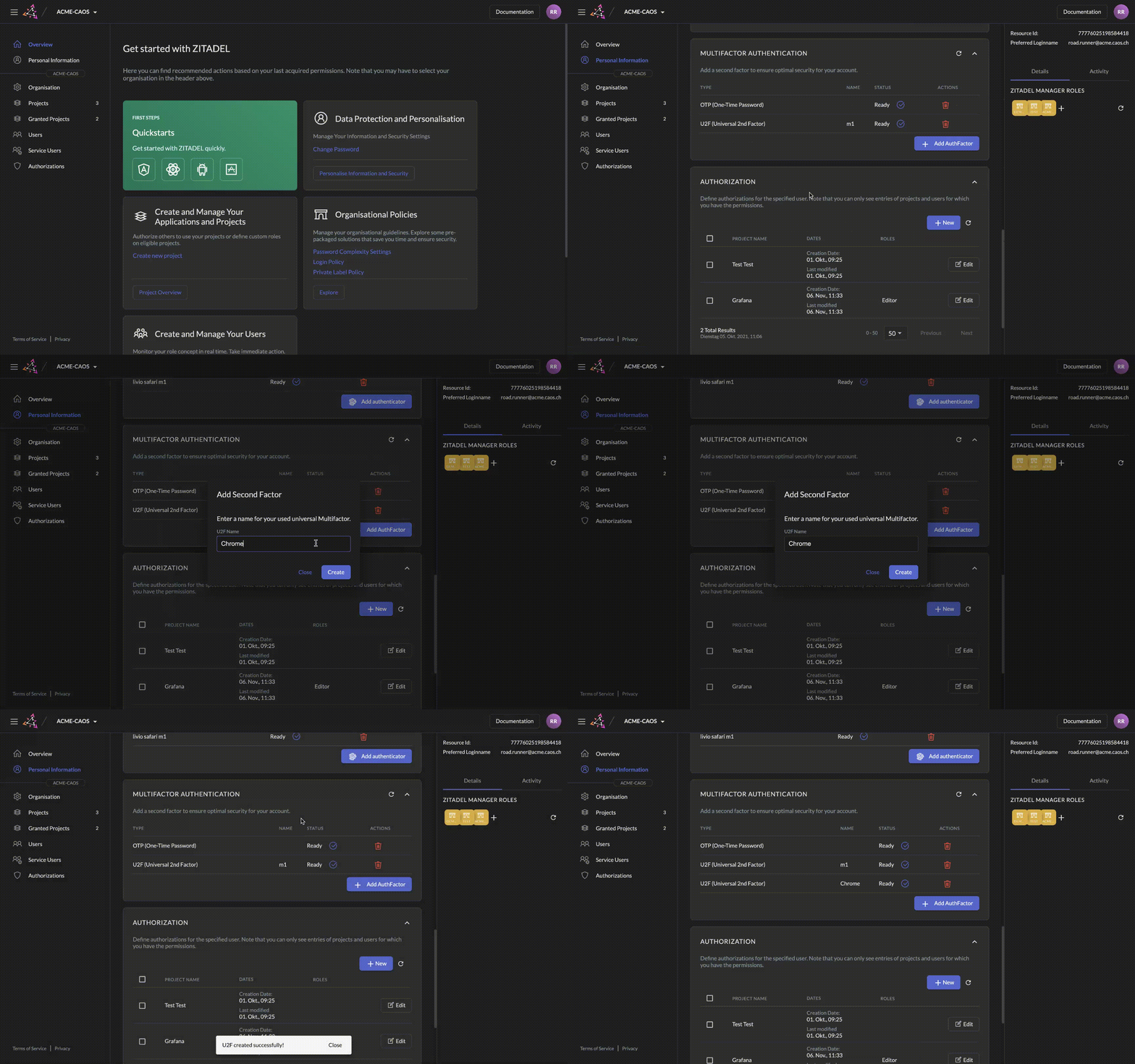
To enable multifactor authentication visit the "Personal Information" page of your account and scroll to the "multifactor authentication".
caution
In order to avoid being locked out if a factor does not work, we recommend registering several options
Configure OTP (One Time Password)
An OTP application creates a dynamic Token that changes periodically and needs to be added in addition to the password.
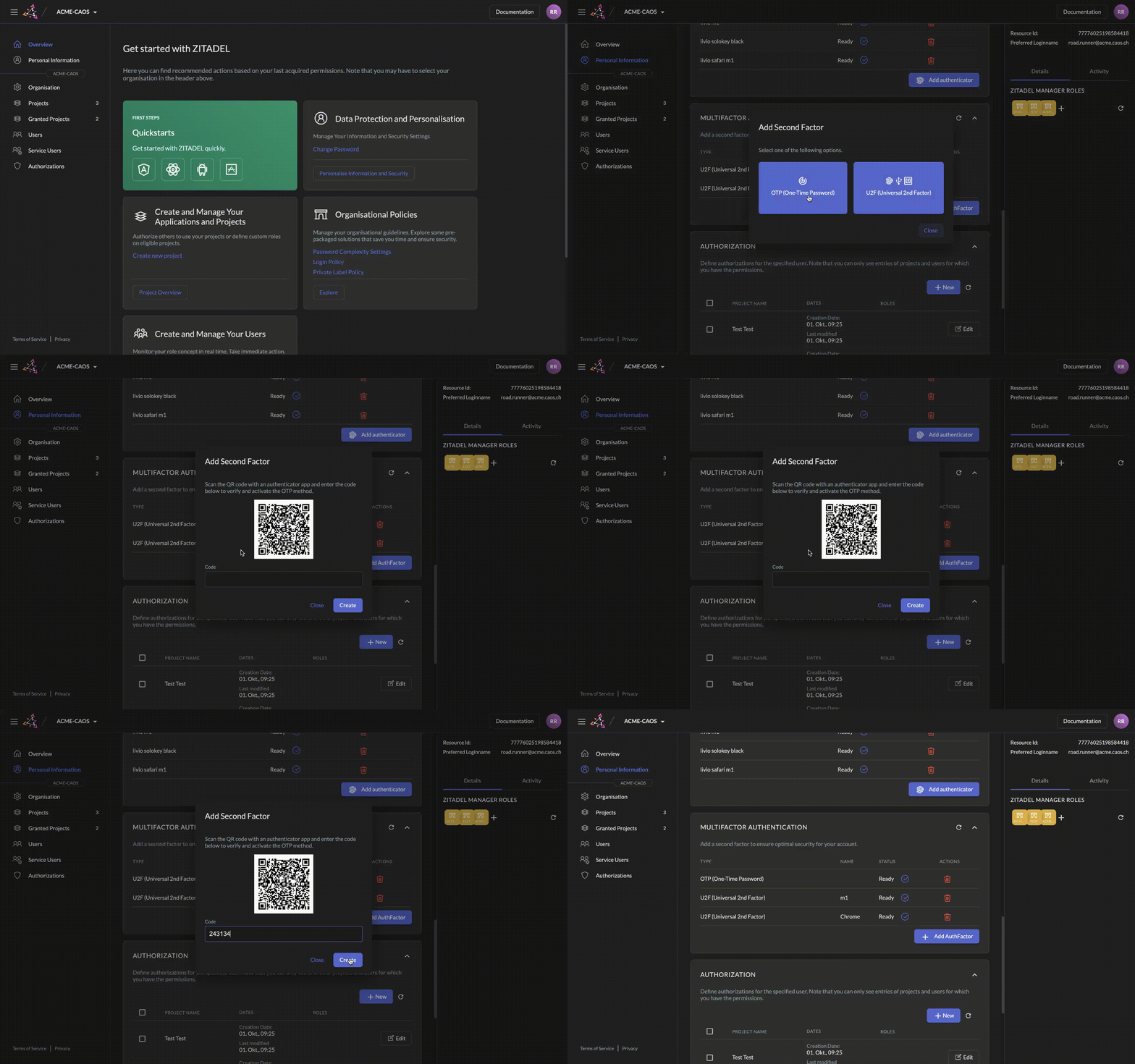
- Install an appropriate OTP application of your choice
- Click Add AuthFactor
- Choose OTP Option
- Scan the QR Code with you chosen authenticator app
- Enter the code from your app in the ZITADEL Console
info
Some example Authenticator Apps for OTP are: Google Authenticator, Microsoft Authenticator, Authy. You can choose the one you like the most.
Configure U2F (Universal Second Factor)
U2F is dependent on the device and browser you are currently working. In general there might be the following possibilities:
- FingerScan
- FaceRecognition (e.g. FaceID)
- Hardware Tokens (e.g. YubiKey, Solokeys)
Hardware Tokens are basically a piece of hardware such as a USB key that gets linked to your Identity and authorizes as second factor when a button on the device is pressed.